
Account Tree - Processing Account Configuration
The Account Tree provides a structured, hierarchical view of entities within the system, allowing you to navigate, configure, and manage accounts efficiently from a central location.
The hierarchy reflects how your organization is set up and can represent different perspectives, such as business units, operational setups, or technical configurations (for example regions, environments, or routing structures).
Designing Your Account Structure
The Merchant Portal account structure can be configured in multiple ways depending on the business model, merchant setup, and operational requirements.
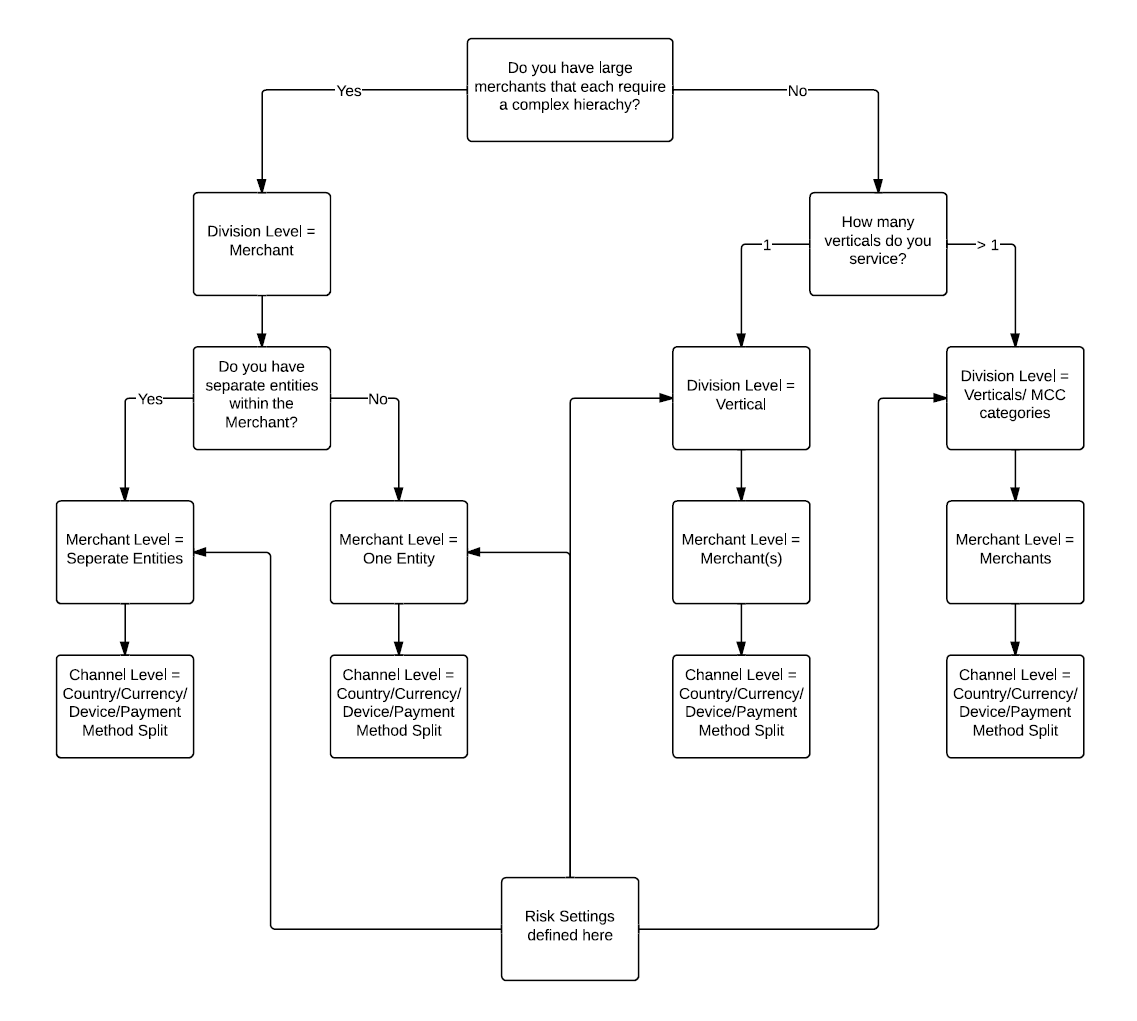
The following diagram provides guidance on how to design the account hierarchy based on key decision criteria.
Figure 1: Decision framework for designing the Account Tree
Key Design Considerations
- Merchant complexity: Large merchants may require dedicated hierarchy levels, while simpler setups can use a flatter structure.
- Entity separation: Merchants can be structured as a single entity or divided into multiple entities depending on business needs.
- Vertical segmentation: Division levels can represent business verticals or MCC categories when applicable.
- Channel configuration: Channel level is typically used to split by country, currency, device, or payment method.
- Risk configuration: Risk settings are applied at specific levels depending on the chosen hierarchy.
Practical Design Guidelines
- Use Division level for: structuring merchants by business unit, vertical, or complexity.
- Use Merchant level for: separating entities when specific configurations or ownership differ.
- Use a single merchant entity when: no internal segmentation is required.
- Use Channel level for: country, currency, device, or payment method differentiation.
- Define risk settings at: the level where business control or policy enforcement is required.
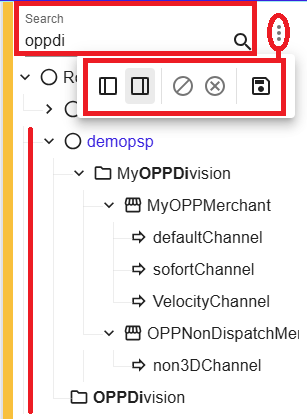
The following example illustrates how the Account Tree appears in practice, including hierarchy levels and control elements.
Figure 2: Account Tree
What you can do
- Navigate between entities across different hierarchy levels
- Understand how entities are structured and related to each other
- Access configuration settings and associated data for each entity
- Manage entities centrally based on your role and permissions
Layout and Navigation
- Resize the Account Tree panel using the drag bar to adjust your workspace
- Minimize the panel to focus on detailed content
- Dock the panel on the left or right side based on your preference
- Save layout preferences to maintain a consistent working view
Breadcrumb navigation helps you understand your current position within the hierarchy and quickly return to higher levels.
Structure
The Account Tree represents all entities in a predefined hierarchical model, ensuring a consistent structure across the system.
- Organization (PSP) – the root level representing the overall provider setup
- Division – a grouping layer used to organize entities logically
- Suborganization (Merchant) – contains merchant-specific credentials and integrations
- Channel – the level where transaction processing is configured and executed
While the overall hierarchy follows a defined model, the structure can be adapted to your business and technical requirements through how entities are organized at each level.
Management
Account Tree management is available under Admin → Account → Entity, where you can maintain and configure entities based on your permissions.
- Create new entities or update existing ones depending on your assigned role
- Confirm changes that may have an impact on transaction processing
- Allow for short delays while updates are applied in the background
Closed entities remain visible within the structure for reference purposes, but they are excluded from any active transaction processing.
View Entity Information
- Entity ID used for identification and integrations
- Entity type indicating its role in the hierarchy
- Current state, reflecting whether processing is enabled or restricted
- Description providing additional business context
- Creation date for audit and tracking purposes
Create Entities
- Select the parent entity where the new entity should be created
- Click Add to open the creation form
- Enter required details such as name, state, customer ID, and description
You can use Add another to create multiple entities in sequence without leaving the creation workflow.
Edit Entities
- Select the entity you want to update
- Click Edit to open the configuration view
- Update fields such as state and description as needed
Entity States
| State | Description | Processing | Reversible |
|---|---|---|---|
| Live | Production | Enabled | Yes |
| Connector Test | Gateway testing | Test only | Yes |
| Integrator Test | Merchant testing | Test only | Yes |
| Disabled | Inactive | Off | Yes |
| Closed | Permanent | Off | No |
- Changes to an entity state can affect all child entities below it in the hierarchy
- Disabled entities can be reactivated at any time
- Closed entities are permanent and cannot be reopened
Both disabled and closed entities may still appear in the Account Tree for visibility. Closed entities can be visually distinguished, for example by a strikethrough style.
Summary
The Account Tree provides a centralized and structured way to manage entities, enabling clear organization, controlled access, and reliable transaction processing across different levels of your setup.