
Merchant Accounts Management
The Merchant Accounts Management section allows you to configure and manage merchant accounts used for payment processing.
It separates configuration from activation:
- Merchant Accounts – Configuration and maintenance
- Active Merchant Accounts – Activation on channels for processing
This separation ensures controlled onboarding and flexible deployment across channels.
Where to find this screen
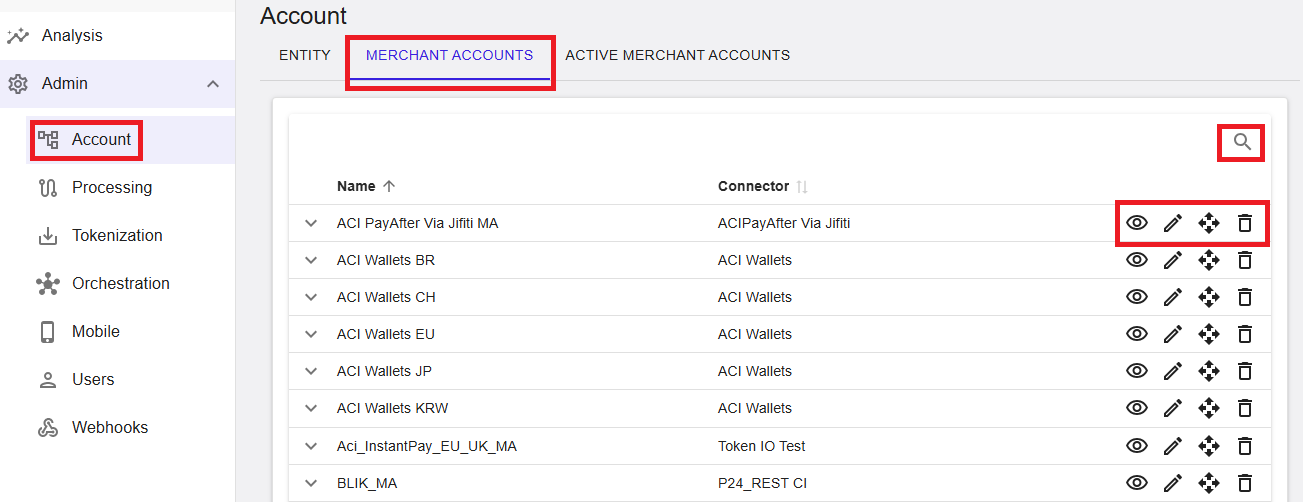
- Select Admin → Account
- Select the MERCHANT ACCOUNTS tab
Figure 1: Merchant Accounts – list view
Merchant Accounts (List View)
The list shows all merchant accounts for the selected entity in the Account Tree.
Each account can be expanded to display assigned channels, providing visibility into where the account is actively used for processing.
Connector availability depends on prior configuration at the root level, where connectors are activated and made available for merchant account setup. Connectors can also be customized or renamed at this level, allowing alignment with customer-specific naming conventions across environments.
- Name
- Connector
Search and pagination help manage large account lists.
Depending on the selected view or filters, merchant accounts in different states (for example, disabled or closed) may still be visible in the list. Visual indicators help distinguish their current status.
Merchant Account Actions
- View
- Edit
- Move
- Delete
⚠️ Moving or deleting a merchant account may impact active transaction processing. A confirmation dialog is displayed before execution.
Merchant accounts cannot be deleted while active on any channel. They must be deactivated first.
Add a New Merchant Account
To create a merchant account, select Add.
You must first select a connector. Only connectors activated at the root level are available.
Configuration is connector-specific and may require credentials such as:
- Processing channel ID
- Client ID
- Secret key
- Account or currency identifier
These settings define how transactions are routed, authenticated, and processed, including orchestration rules such as payment type, shopper type, and transaction characteristics.
Creating a merchant account defines the configuration, while activation on a channel enables actual transaction processing. Both steps are required for a complete setup.
After creation, the merchant account must be activated on a channel. Multiple currencies and brands can be configured during activation, depending on connector capabilities.
Incorrect configuration (for example, unsupported currency settings) may prevent successful transaction processing. It is recommended to validate configuration during setup to avoid failed transactions after activation.
View Merchant Account
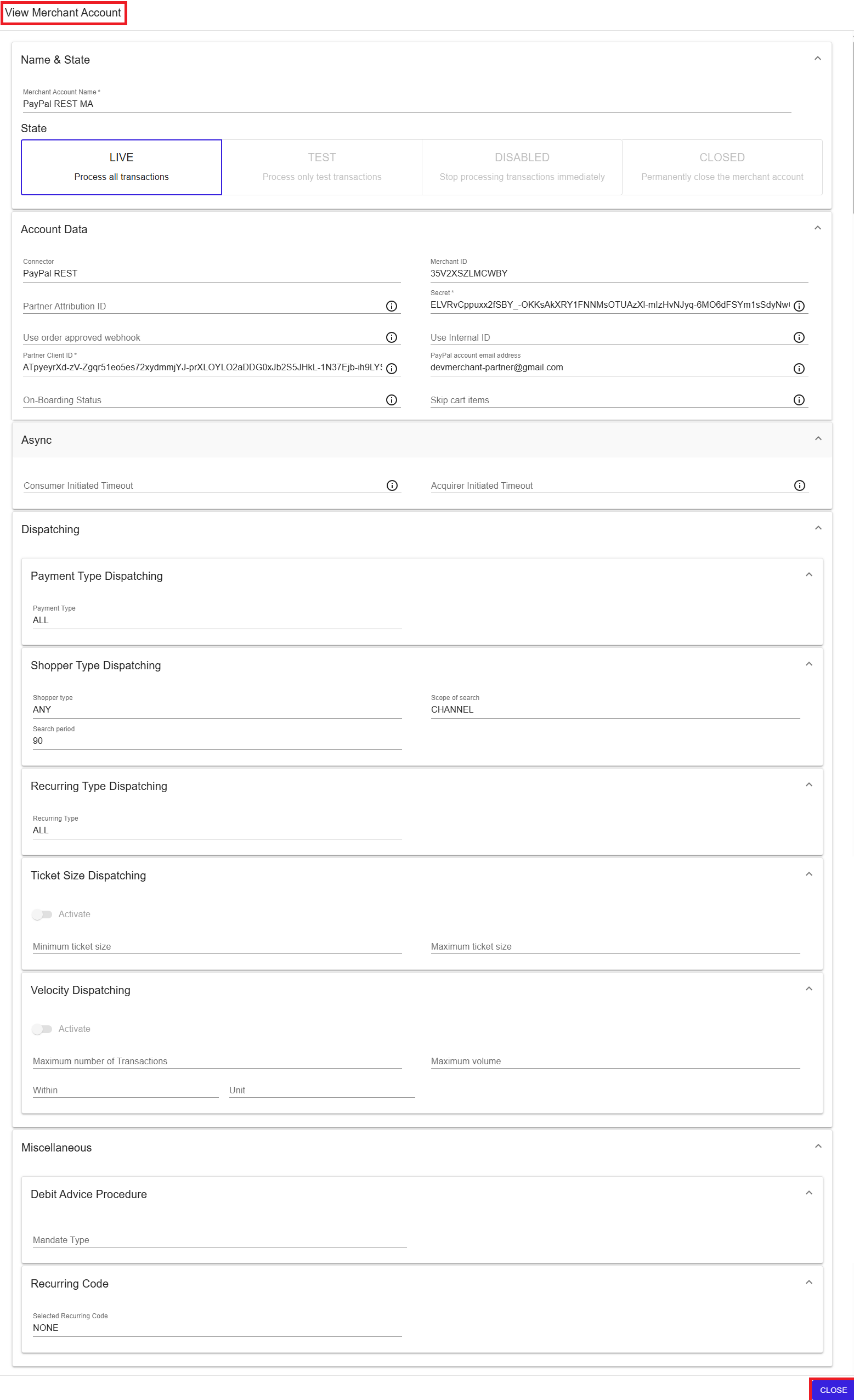
Select View to open the merchant account in read-only mode.
Figure 2: View Merchant Account
Edit Merchant Account
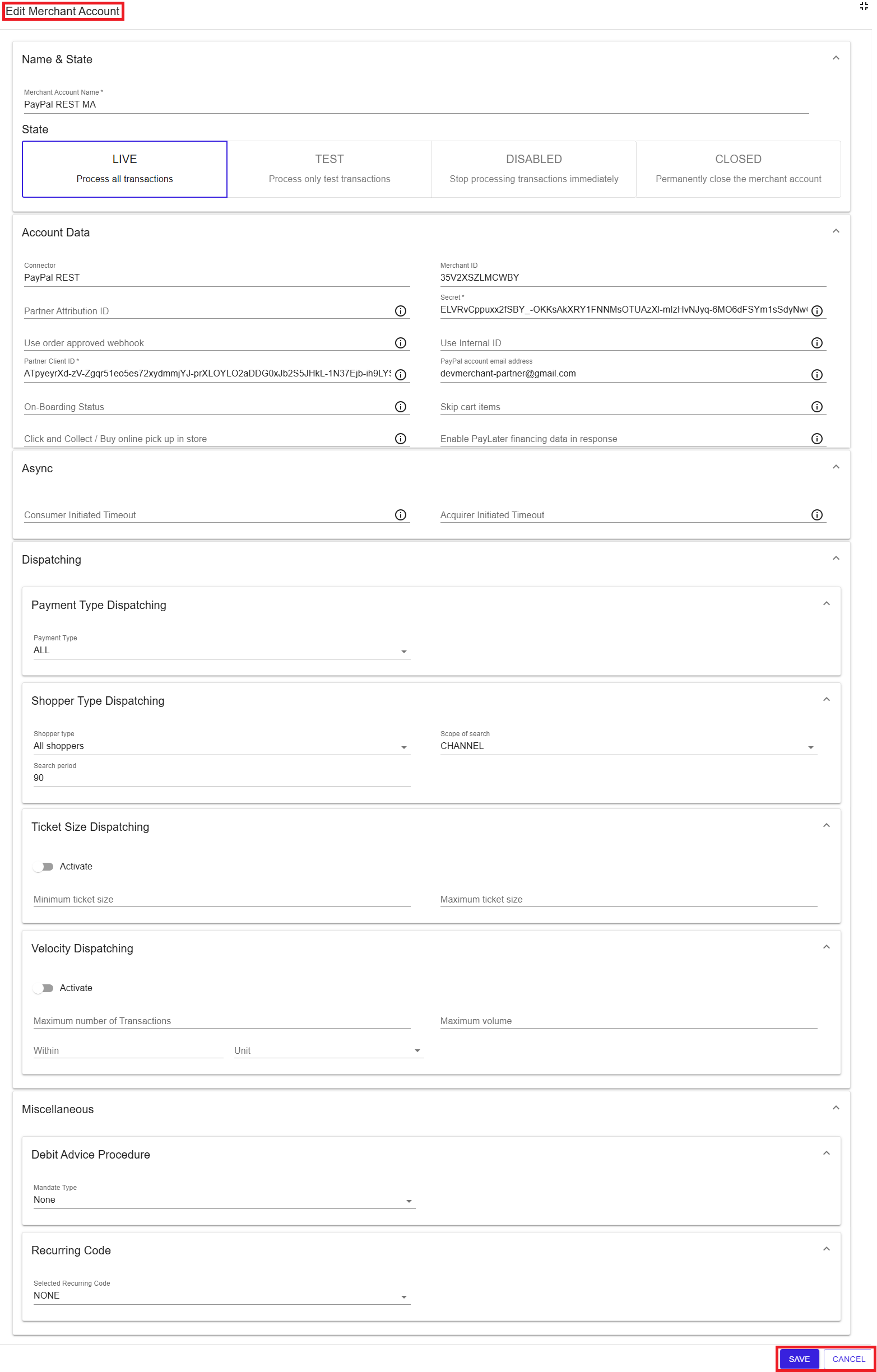
Select Edit to update the account configuration.
The same configuration dialog is used as during creation, allowing updates to connector-specific settings and processing rules.
Figure 3: Edit Merchant Account
Merchant Account State
- LIVE – Processes transactions
- TEST – Test transactions only
- DISABLED – Processing stopped
- CLOSED – Permanently closed
Changes to state may affect transaction availability and require confirmation before being applied.
The CLOSED state is permanent and cannot be reversed through standard portal functionality. Reopening a closed merchant account is not supported and may require exceptional backend intervention.
Summary
The Merchant Accounts section supports full lifecycle management of payment processing configuration. By combining connector setup, account configuration, and channel activation, it enables flexible, scalable, and controlled transaction processing across entities and environments.