
Entity View
The Entity View provides detailed information about a selected entity within the Account Tree hierarchy. At the Merchant level, it allows you to review configuration details and manage merchant-specific API Tokens, where permitted.
The information shown on this screen is context-sensitive and depends on the entity selected in the Account Tree.
Where to find this screen
- In the left navigation menu, select Admin → Account.
- Select the ENTITY tab at the top of the page.
- Ensure a Merchant is selected in the hierarchy (PSP → Division → Merchant).
Breadcrumb navigation and the Account Tree help ensure that the correct entity context is selected when accessing this screen.
Figure 1: Account – Entity (Merchant) view
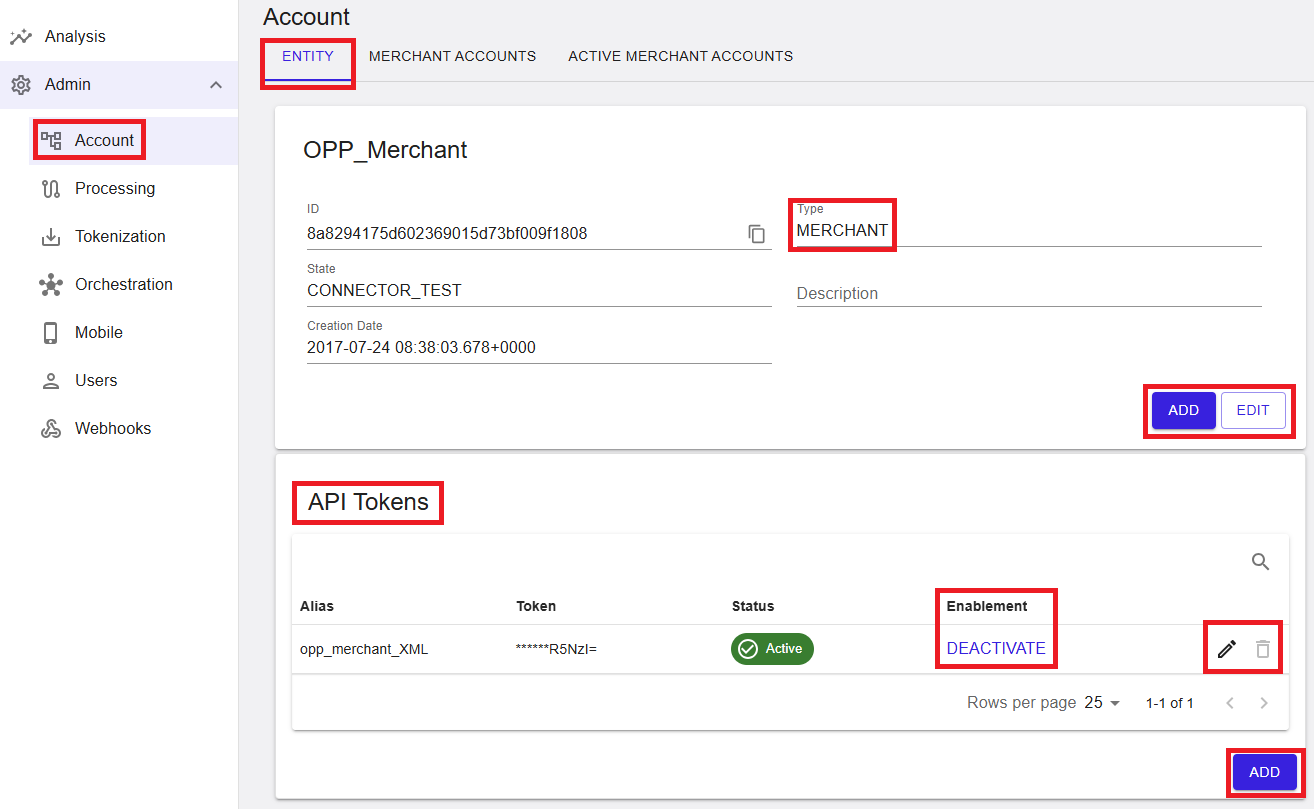
Entity Tab (Merchant Details)
The ENTITY tab displays key configuration details for the selected merchant entity. This includes identification data, current status, and descriptive information used for operational management.
The entity state directly determines how transaction processing is handled (for example, whether transactions are processed in live or test mode).
- Name – The merchant name displayed as the page heading.
- ID – The unique identifier for the merchant entity.
- Type – The entity type (shown as MERCHANT).
- State – The current state of the entity (for example, CONNECTOR_TEST), defining processing behavior and availability.
- Creation Date – The date and time when the entity record was created.
- Description – A short description of the merchant, if configured.
Entity visibility within the Account Tree can be adjusted using available view options. Closed and disabled entities may still be displayed depending on the selected filters.
- Closed entities – Displayed with a visual indicator (for example, strikethrough) and cannot be reactivated through standard portal functionality.
- Disabled entities – Visible depending on filter settings and may be re-enabled if permitted.
- Test entities – May include additional indicators or controls to distinguish them from live entities.
Entity Actions
The entity details section provides action controls for managing the selected entity. Available actions depend on your assigned permissions.
- ADD – Creates a new entity at the appropriate level in the hierarchy.
- EDIT – Updates the configuration of the selected entity.
Actions such as creating or updating entities may trigger backend configuration processes and are not always applied instantly.
Changes that affect the entity state or processing behavior require confirmation before they are applied, as they may impact transaction processing.
Some entity lifecycle actions are restricted. For example, entities marked as closed cannot be reopened through standard portal functionality.
Summary
The Entity View provides a consolidated interface for reviewing and managing merchant-level configuration. Together with the Account Tree, it enables structured entity management, where hierarchy, configuration, and status determine how transactions are processed across the platform.